
Hope everybody had a great week!
This week my Mac told me it was almost out of space, and Claude helped me get back more than 18 GB without deleting a single thing I cared about. I’ll tell you how. But first, if you use a custom GPT in ChatGPT, even one, there’s a date you need to know.
Let’s get into it.
- 26 Days Until Your Custom GPTs Are Gone
- 5 ChatGPT Codes That Turn Any Topic Into a Picture
- My Mac Was Out of Space. Claude Found 18 GB.
- Prompt of the Week: Clean Up What AI Remembers About You
- Claude Can Now Build Spreadsheets
- Tool of the Week: Talk Instead of Type
- Your home address is one Google search away
- Turn your photos into GIFs
🏁 Start here
26 Days Until Your Custom GPTs Are Gone

OpenAI is retiring custom GPTs on December 11. That’s every GPT in ChatGPT, the ones you built and the ones other people built. After that date, they stop working.
The good news: your old chats stay. Anything a GPT already gave you is still in your history. What goes away is using the GPT in new chats.
What to do depends on how you use them:
You use someone else’s GPT. In ChatGPT, go to Explore, then GPTs, click Explore plugins, and search for it. No plugin yet? Ask the creator if they plan to move it, and use the GPT as much as you can before December 11. Save what it gives you.
You built your own. Go to Explore, then GPTs, and click Migrate GPTs on the notice at the top. One click turns your GPT into a plugin. It starts private, so test it, then share the link with anyone who used your GPT.
The guide walks through both, in a few minutes, so nothing catches you off guard on December 11.
Keep Your Favorite GPTs Working →
🖼️ Learn anything
5 ChatGPT Codes That Turn Any Topic Into a Picture

Some things don’t stick until you can see them. Type one of these codes into ChatGPT with the topic you want to learn, and you get the whole thing on one page.
-
/comiclesson turns a story into a comic page, like the whole plot of Macbeth
-
/timelineview lays out every major event in order, like World War II
-
/explodedview opens something up so you can see how it was built, like the Roman Colosseum
-
/careerroadmap maps every step to a new career, like becoming a registered nurse
-
/bodyexplained shows what something does to your body, like caffeine
Just add what you want to learn right after the code, like /timelineview the space race, and ChatGPT takes it from there.
Turn Any Topic Into a Picture You’ll Remember →
📝 Do this with Claude
My Mac Was Out of Space. Claude Found 18 GB.
My Mac popped up the warning nobody wants: your disk is almost full. I had less than 7 GB left, and I was in the middle of editing a video.
So I asked Claude to find what was eating my space. It came back with a list: old caches, leftover installer files from app updates, and a handful of big apps I hadn’t opened in months. Next to each one, it said what it was, how big it was, and whether it was safe to remove.
The part I loved: it didn’t delete a thing on its own. It asked me first, item by item, and the apps I removed myself. I went from under 7 GB free to over 25 GB, and nothing I cared about went anywhere.
If your computer keeps nagging you about storage, it’s worth an afternoon.
💬 Prompt of the Week
Clean Up What AI Remembers About You
ChatGPT and Claude both save things about you as you chat: your job, your kids’ names, a project you finished months ago. Over time some of it goes stale, and stale memories quietly make your answers worse.
Paste this into ChatGPT or Claude. It shows you everything it remembers, marks what’s out of date, and asks you before it changes anything.
Look at everything you've saved in your memory about me. I want a short, accurate list.

1. Show me each memory on its own line.
2. Next to each one, write KEEP, UPDATE (it's wrong or out of date), or REMOVE (a one-time thing that doesn't matter anymore).
3. Ask me about anything you're not sure of before you change anything.
4. Then show me the cleaned-up list. If you can't update your memory yourself, tell me which ones I need to change by hand.
Do it once a month and your answers stay sharp.
💫 News you can use today
Claude Can Now Build Spreadsheets
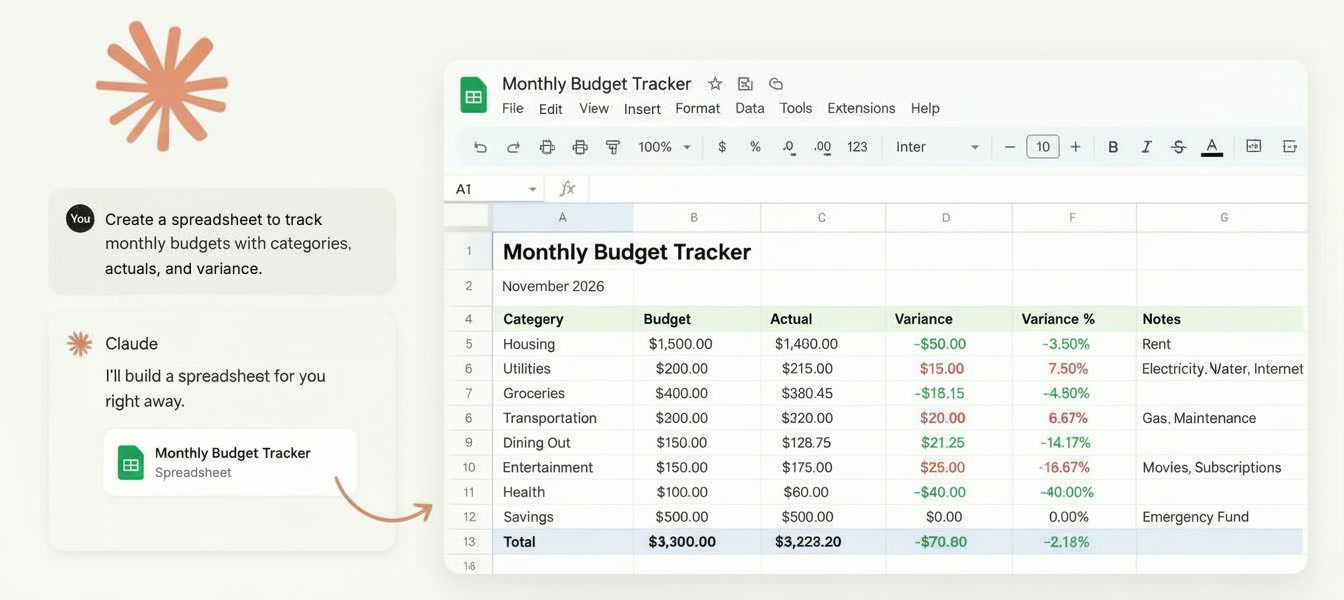
Anthropic added Claude Sheets this week: describe what you need, like a holiday gift budget or a tracker for your job applications, and Claude builds the spreadsheet with you. Share it, and you, your family or coworkers, and Claude can all work in it at the same time. There’s also Claude Whiteboards, a shared board for brainstorming with Claude. Both are in beta on every paid plan, starting with the $20 plan, on the web, desktop, and phone. Anthropic’s announcement
🧰 Tools worth a look
Tool of the Week: Talk Instead of Type
Most people talk about three times faster than they type. Wispr Flow puts that speed to work. Talk the way you would to a friend, ums and all, and it types clean, polished text into whatever app you’re in. Email, texts, ChatGPT, anything.
That reply you’ve been putting off, your notes after a meeting, the long prompt you don’t feel like typing out: say it, and it’s done. What used to take five minutes at the keyboard takes about one.
It works on Mac, Windows, iPhone, and Android. The free plan gives you a set number of words each week, and the paid plan is $15 a month.
⚡ In case you missed it
Two Guides From This Week
1. Your home address is one Google search away. People-search sites show your address and phone number to anyone who types your name. Claude finds every site listing you, gets the removal requests ready, and walks you through each one, all free.
Take your address off the internet →
2. Turn your photos into GIFs. A birthday wave, the dog doing a high-five, a toast from a wedding. ChatGPT turns your own photos into GIFs you can text to the people you love, with 25 prompts for birthdays, holidays, and just-because.
Make a GIF from your own photo →
💛 That’s a wrap
Your Move
Move your GPTs before December 11, turn any topic into a picture with five ChatGPT codes, and let Claude find the space your computer is hiding. Pick one and try it today.
Know someone who leans on a custom GPT? Forward this so December 11 doesn’t catch them off guard.
Hit reply and tell me which one you tried. I read every one.
See you next week, Kelly