
Claude Hidden Features: 17 Most People Never Touch, Including the Hard Mentor Prompt
Get real time back from the Claude you already have. Design a flyer in minutes, build your own budget calculator, have your to-do list waiting every morning, and get honest feedback on a plan before it costs you.
Save it, print it, read it offline. It's yours.
Most people use Claude like a search box. They ask a question, read the answer, and close the tab. Meanwhile, a few clicks away, there’s a designer who will make your flyers, a builder who will make you a budget calculator in a minute, an assistant who has your to-do list ready every morning, and a mentor who will tell you the truth about your plans. These are the 17 Claude features I’d want every friend of mine to know about. Each one takes minutes to set up and pays off every single day after that, and the hard mentor prompt is right here, ready to copy.
Claude's hidden features are tools already built into Claude that most people never open: Claude Design for flyers and slides, Artifacts for working tools, the Effort setting for careful thinking, and Scheduled tasks that run on their own. Many of them work on the free plan.
A Claude account, at claude.ai, in the Claude desktop app, or on your phone. Many of these work on the free plan, and I'll tell you when one needs a paid plan. The $20 Pro plan covers every feature here except prompt caching, which is for people building their own apps.
They’re the parts of Claude that sit outside the chat box: a design tool, working tools Claude builds for you, a setting that makes it think longer, jobs that run on a schedule, and prompts that turn Claude into a coach. Here are all 17 and the plan each one needs.
| # | Feature | What it does for you | Plan |
|---|---|---|---|
| 1 | Claude Design | Builds flyers and slide decks in your colors | Every plan, including free |
| 2 | Artifacts | Builds working tools, like a budget calculator, in the chat | Every plan |
| 3 | Extended thinking (Effort) | Makes Claude reason longer before it answers | Levels depend on the model you pick |
| 4 | Scheduled tasks | Runs a job on its own, every day or week | Pro and up |
| 5 | The hard mentor prompt | Shows you the holes in your plan | Every plan |
| 6 | Projects | Keeps your files and instructions for every chat | Free has 5, Pro has unlimited |
| 7 | Memory | Remembers you from one chat to the next | Free, Pro, and Max, on by default |
| 8 | The personal psychologist prompt | Helps you talk through what’s on your mind | Every plan |
| 9 | The personal trainer prompt | Builds a workout plan that grows with you | Every plan |
| 10 | Practice a difficult conversation | Lets you rehearse before the real thing | Every plan |
| 11 | The devil’s advocate prompt | Argues the other side of a decision | Every plan |
| 12 | Claude in Chrome | Works inside your browser for you | Pro and up |
| 13 | Cowork | Does the task on your computer instead of explaining it | Pro and up |
| 14 | Skills | Teaches Claude a job once, for good | Every plan |
| 15 | Claude Code | Builds apps and websites from a description | Pro and up |
| 16 | CLAUDE.md | Gives Claude Code your rules every session | Comes with Claude Code |
| 17 | Prompt caching | Makes repeat requests cheaper in your own app | Claude API, paid by use |
Claude Design is a design tool built right into Claude. Give it your colors and tell it what you need, like a flyer, a slide deck, or a one-pager, and it builds it on a canvas next to your chat. You can export it as a PDF or a PowerPoint file. It’s on every plan, including free.
Everything you make matches your brand, and you don’t need a designer or a design app. Here’s how to make your first one:
- Click Design in the left sidebar. You can also open Artifacts and click the Design tile under Make something new.
- Tell it your colors. Type them in (“navy, coral, and cream”) or upload your logo and say “use these colors.”
- Say what you need and who it’s for. Be specific about what has to be easy to read.
- Ask for changes the way you’d tell a person: “make the headline bigger,” “try a darker background,” “now make this a five-slide deck.”
- Click Export in the upper right and choose PDF or PPTX (PowerPoint). You can also send it to Google Slides or Canva.
Make a one-page flyer for a Saturday bake sale at the community center, 9am to noon. Use navy, coral, and cream. Big headline, the date and time easy to read from across the room, and a spot at the bottom for a QR code.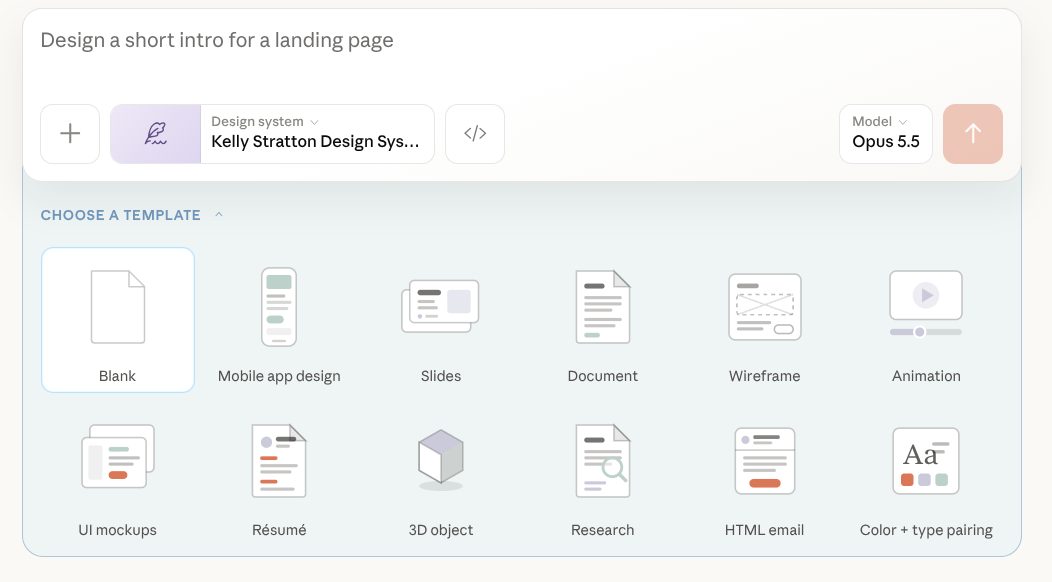
Claude Design now lives inside Claude, and new designs and slide decks are saved as artifacts. The old site at claude.ai/design closes on December 14, 2026, so download or move any projects you made there before that date.
Artifacts are working things Claude builds right inside your chat: a budget calculator, a habit tracker, a chart, a checklist. You can type into them and use them on the spot, so you don’t need another app. They work on every plan, and you’ll find them again under Artifacts in the sidebar.
Ask for the tool the way you’d describe it to a friend, and say what should happen when you type in it:
Build me a monthly budget calculator I can type into. Put my income at the top, then rent, groceries, gas, and fun money. Show how much I have left this month in big numbers that update as I type, and add a bar that shows how much I've spent.Here’s the one I made with that prompt. I typed in my numbers and it did the math as I went.
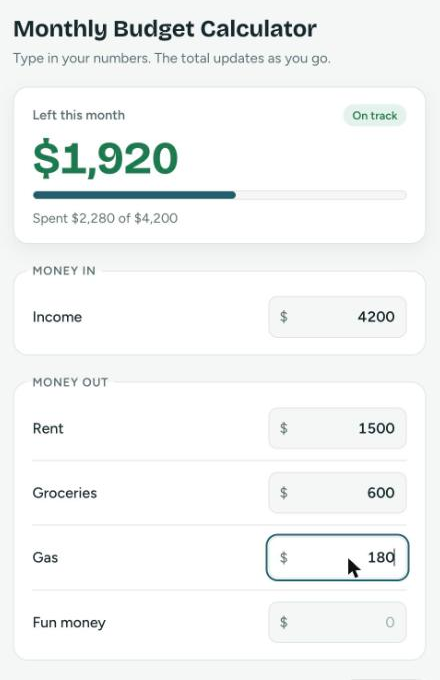
Want changes? Keep talking: “add a savings line,” “make it green when I’m under budget.” Claude updates it in place. Your artifacts are private until you share one. If you’ve shared some before, here’s how to check which ones are public.
In Claude, extended thinking now lives in the Effort setting. Click the model name next to the send button, then Effort, and pick Low, Medium, High, Extra, or Max. Medium is the default. Turn it up for a big decision, and Claude reasons through the whole problem before it answers.
You get a careful answer instead of a fast one. Here’s where to find it:
- Start a chat and click the model name next to the send button.
- Click Effort. You’ll see five choices: Low, Medium (marked Recommended), High, Extra, and Max.
- Pick High or Extra for a decision that matters. Save Max for the hardest problems.
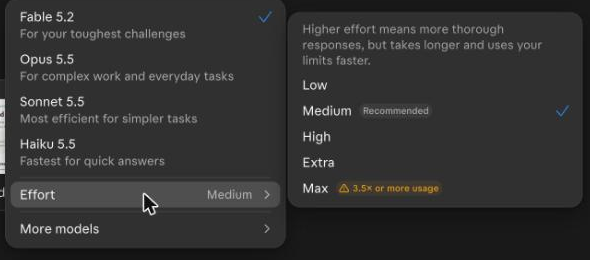
Claude says it right in that menu: higher effort means more thorough responses, but it takes longer and uses your limits faster. So turn it up for a contract, a job offer, comparing two big options, or money math you’ll rely on, and leave it on Medium for everyday questions. Which levels you see depends on the model you’ve picked.
I'm deciding whether to [take the new job / move / buy this car]. Here's everything I know: [paste the details]. Think it through carefully. Tell me what I'm missing, what each choice costs me over the next two years, and which one you'd pick and why.On Claude's newest models, thinking is always on, so there's no separate switch to flip. Effort is how you ask for more of it.
Yes. Scheduled tasks let you set up a job once, like a daily to-do list or a Friday recap, and Claude runs it on its own at the time you pick, even when your computer is asleep. Click Scheduled in the left sidebar to start. It’s on every paid plan, starting with the $20 Pro plan.
It’s Claude on autopilot. Here’s how to set up your first one:
- Click Scheduled in the left sidebar. You’ll see two tabs, Yours and Templates.
- Open Templates for a head start. There’s Daily briefing, Inbox triage, Meeting prep, Weekly review, Content ideas, Monitor a topic, and Appointments to calendar. Pick one and change the time or the details to fit you.
- Or click New task, choose Create with Claude, and describe the job in a sentence. Claude asks a few questions, then shows you the name, the schedule, and the task to confirm.
- If the job reads your email or calendar, connect Gmail or Google Calendar first, in Settings under Connectors.
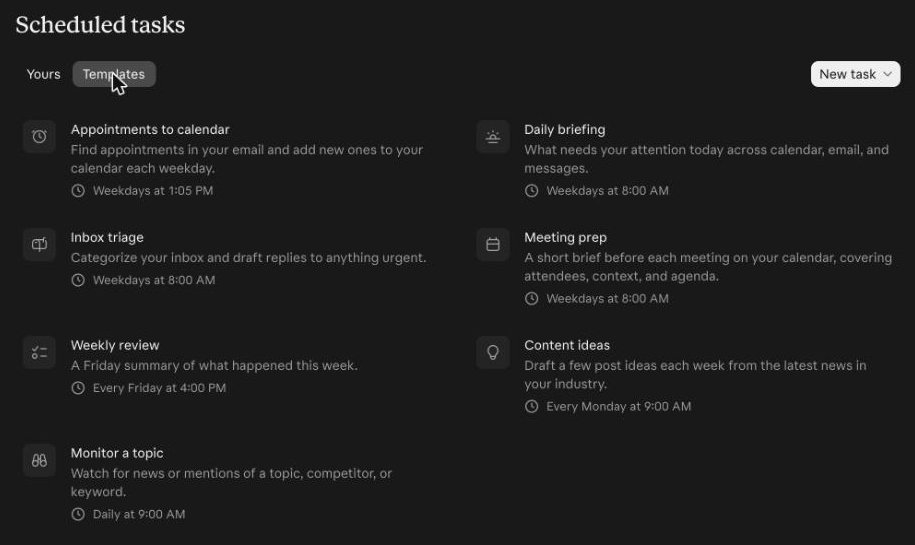
Here’s a daily to-do list you can paste into Create with Claude:
Every weekday at 7am, look at my calendar and my email and give me today's to-do list. Put the three things that matter most at the top, then everything else. Flag anything with a deadline today. Keep it short enough to read in one minute.On the newest version of Claude, you can also ask for a schedule in any chat. Say what you want and how often, answer any questions, and click Schedule.
Give it a job that requires honesty. Paste the hard mentor prompt at the start of a chat, fill in who you are and your plan, and Claude stops cheering you on. It names what could sink your plan, makes the best case against it, and ends with the question you most need to answer. It works on every plan.
Claude is built to be helpful and kind, so left on its own it tends to look for what’s good in your idea. That feels nice and can cost you. This prompt gives Claude a different job: find the holes in your plan before they cost you money or time.
For this whole chat, be my hard mentor. Stop agreeing with me and show me the holes in my plan.

About me: [who you are, what you're working on, and the goal you're trying to hit]

When I share a plan, an idea, or a decision, pick the 3 to 5 of these that matter most for it:
- The question I haven't asked myself yet, the one that could send me in a different direction
- The best case someone could make against this plan
- What I'm not seeing because I'm excited about the idea
- How this could actually fail, with the specific way it would happen
- The bigger question hiding under this idea

When I answer you, don't just accept it. If my answer is fuzzy or skips the real issue, call it out and dig deeper. Keep going until the decision is clear.

Be direct but kind. Keep your sentences short. Don't open with praise, don't lecture, and don't pad. If part of my plan is strong, say so in one line. If something would sink it, say that first.

Finish every reply with the one question I most need to answer next.

Here's my plan: [paste your plan]
How to use it:
- Copy the prompt into a new chat.
- Fill in About me with a sentence or two. The more Claude knows about your goal, the sharper it gets.
- Replace the last line with your plan, then send it.
- Answer the question at the end of every reply, honestly. That’s where the real work happens.
Good follow-ups once it’s going:
- “Which of these would you fix first, and how?”
- “Pretend I’m three months in and it isn’t working. What happened?”
- “Rewrite my plan with your fixes in it.”
If Claude starts opening with compliments again, or the replies go soft deep into a long chat, paste this: "Remember, you're my hard mentor. Go back to it." To have the mentor ready every time, paste the prompt into a Project's instructions (feature 6).
Claude only knows what you tell it. It's great at finding the holes in a plan. Whether people will actually buy, hire, or say yes is something you learn by asking them, and the mentor will push you to do exactly that.
Two features do this. Projects keep your files and instructions for every chat inside them, and Memory carries what Claude learns about you from one chat to the next. Together they mean you stop explaining yourself every time you open Claude.
6. Projects
Give Claude your documents and instructions once, and every chat inside the project starts with them. Make one for each part of your life you come back to: your business, a class, a move, your meal planning.
- Click Projects in the left sidebar, then New project.
- Add the files Claude should always have, like your price list, your resume, or your class notes.
- Write a few lines of instructions: who you are, what this project is for, and how you like answers.
Plan: the free plan has five Projects. Pro has unlimited.
7. Memory
Claude remembers your work and how you like things done, so a new chat picks up where you left off. You can see everything it remembers and change it any time.
- Go to Settings, then Your Claude, and make sure Generate memory from chats is on. (On the older settings layout, it’s under Settings, then Memory.)
- Click Manage next to Your memory to read what Claude has saved, edit it, or delete it.
- You can also say it in a chat: “remember that I’m vegetarian,” or “forget what I said about the old job.”
Plan: on by default for Free, Pro, and Max. On Team and Enterprise plans, your company decides.
The hard mentor is one of five prompts that give Claude a role you need. These four work on every plan. Copy one into a new chat, fill in the brackets, and send it.
8. The personal psychologist prompt
For the thing that’s been sitting on your chest. Claude listens, asks one question at a time, and helps you see your own thinking more clearly.
For this chat, be a calm, thoughtful listener, the way a good psychologist would be. I want to talk through something that's been on my mind.

- Ask me one question at a time, and wait for my answer.
- Reflect back what you hear me saying, so I can see it more clearly.
- Gently point out patterns in how I'm thinking about it.
- Don't rush to fix it or hand me a list of tips unless I ask.
- When we're done, sum up what I figured out and one small next step.

What's on my mind: [describe it in a few sentences]
Claude is a good listener, and it isn’t a therapist. If you’re struggling or thinking about hurting yourself, please reach out to a real person today. In the US, you can call or text 988, any time.
9. The personal trainer prompt
A workout plan built around your goal, your equipment, and your schedule, that gets harder as you get stronger.
Act as my personal trainer. My goal: [get stronger / lose 15 pounds / keep up with my kids]. Where I am now: [haven't worked out in years / walk most days]. Equipment: [two dumbbells and a mat / full gym / nothing]. I can do [3] days a week, [30] minutes each. Work around: [bad left knee / none].

Build week one as a table with a warm-up, then each day's exercises with sets, reps, and rest. Give me an easier and a harder version of every exercise. Each week I'll tell you how it went, and you build the next week from that.
Want the full 12-week version? It’s in 9 Things You’re Still Paying For That Claude Does for Free. Claude can’t watch your form, so start lighter than you think, and check with your doctor first if you have an injury or a health condition.
10. Practice a difficult conversation
Asking for a raise, setting a boundary with family, telling a client no. Claude plays the other person so you can rehearse until the words come easily.
I need to have a hard conversation, and I want to practice first.

Who it's with: [my boss / my sister / a client]
What I need to say: [the main point]
What I'm worried they'll say back: [their likely reaction]

Play them the way they'd really react, based on what I've told you. Stay in character and don't make it easy on me. After 5 back-and-forths, step out of character and tell me what I said well, where I lost ground, and the one sentence I should open with next time.
11. The devil’s advocate prompt
For one decision or one opinion you want to test. The hard mentor stays on for a whole chat about your plans. This one argues the other side of a single question, as well as a smart person who disagrees would.
Here's something I've decided: [describe it]. Argue the other side as well as a smart person who disagrees with me would. Give me the three strongest points against it, what would back up each one, and what would have to be true for me to be wrong. Don't soften it, and don't tell me which side you agree with until I ask.Yes. Claude in Chrome works inside your web browser, Cowork works with the files and apps on your computer, and Skills teach Claude how you like a job done. Instead of telling you how to do something, Claude does it while you watch.
12. Claude in Chrome
Claude works in a side panel inside your Chrome browser. It reads the page you’re on and can click, fill in forms, and move between tabs for you, so the comparison shopping or the form you’ve been putting off gets done while you watch.
- Search Claude in the Chrome Web Store and add the extension.
- Sign in with your Claude account.
- Open the side panel on any page and tell Claude what you want done.
Plan: paid plans, Pro and up.
13. Cowork
Cowork is where Claude does the work instead of explaining it. It works inside your files and folders, uses your connected apps, and can run its own browser. Hand it a job in one sentence, like “sort my downloads folder into folders by type,” and review what comes back.
- Open the Claude desktop app (Mac or Windows).
- If your message box shows Chat and Cowork, pick Cowork. If it doesn’t, you already have the newer Claude where the two are one, so just ask in any chat.
- Describe the job and what you want back.
Plan: Pro and up. For ten jobs to hand it first, see How to Use Claude Cowork’s Built-In Browser.
14. Skills
A skill is a set of instructions for one kind of job, like writing in your voice or making slides that match, that Claude pulls out on its own whenever that job comes up. You set it up once and it’s there for good, in chats and in Cowork.
- Open Settings and click Skills.
- Search for a skill and click Add, or upload one you downloaded as a ZIP file.
- Make sure Create and edit files is on in Settings under Capabilities (some accounts call it Code execution and file creation), since Claude runs skills with its code tool.
Plan: every plan, including free. Five good ones to start with are in The Best Claude Skills for Beginners.
When you’re ready to make your own app, website, or tool, these three are where to go. Claude Code builds it from a description, CLAUDE.md keeps your rules in front of it, and prompt caching makes your own Claude-powered app cheaper to run.
15. Claude Code
Describe an app, a website, or a tool, and Claude Code writes the code, runs it, and fixes it as it goes. You don’t need to know how to code to try it. Say what you want, watch it build, and ask for changes.
- Open the Code tab in the Claude desktop app, or go to claude.ai/code.
- Describe what you want to build and who it’s for.
- Ask for changes until it’s right.
Plan: Pro and up.
16. CLAUDE.md
A plain text file named CLAUDE.md that sits in your project folder. Claude Code reads it at the start of every session, so what the project is, your rules, and how you like things done are there every time, without you repeating them. Type /init in Claude Code and it writes a first draft for you to edit.
Plan: comes with Claude Code, Pro and up.
17. Prompt caching
This one is for when you build your own app on Claude through Anthropic’s API. Prompt caching lets Claude hold on to the long part of a prompt you send over and over, like your instructions or a big document, so repeat requests come back faster and cost less. Anthropic’s developer docs show how to turn it on in your request.
Plan: the Claude API, which is billed by how much you use, separate from the chat plans.
Start with the one that saves you the most time this week. If you’re not sure, this order works for almost everyone:
- Today: copy the hard mentor prompt and give it the plan you’ve been turning over in your head.
- Tomorrow: set the Effort to High for your next big question and see how much more careful the answer is.
- This week: build one artifact you’d actually use, like the budget calculator, and make one flyer in Claude Design.
- When you’re on Pro: open Scheduled, start from the Daily briefing template, and let Claude have your day sorted before you finish your coffee.
You don’t have to learn all 17 at once. Pick one, use it until it feels normal, then come back for the next.
Sources: Claude help center: Get started with Claude Design · Claude help center: Move from standalone Claude Design to Claude · Claude help center: Change the model, effort, and thinking settings · Claude help center: Schedule recurring tasks · Claude help center: Chat search and memory
Want more like this?
One simple AI win in your inbox every Sunday. No jargon, no overwhelm, unsubscribe whenever you like.
Want more like this?
Free AI guides added regularly. No jargon, no overwhelm.
kellystrattonai.com