Hope everybody had a great week!
ChatGPT asked for something new this week: your bank account. Before you say yes, there’s a two-minute check I want you to do, and it’s up first.
This week: what to check before you connect your bank account to ChatGPT. 104 ChatGPT codes that turn any book into study notes. GPT-6 on the free plan, and the answers you can click on. And what Claude’s free plan can make for you now. Plus a free way to check if a photo is AI, a headshot from a selfie, and a two-minute check for the spreadsheet formulas you don’t trust.
Let’s get into it.
- ChatGPT Wants Your Bank Account. Do This First.
- 104 ChatGPT Codes That Turn Any Book Into Study Notes
- GPT-6 Is Coming to ChatGPT's Free Plan
- Claude's Free Plan Can Make Docs and Slides Now
- Check if a photo was made with AI
- A professional headshot from a selfie
- Let Claude check your spreadsheet formulas
🏁 Start here
ChatGPT Wants Your Bank Account. Do This First.
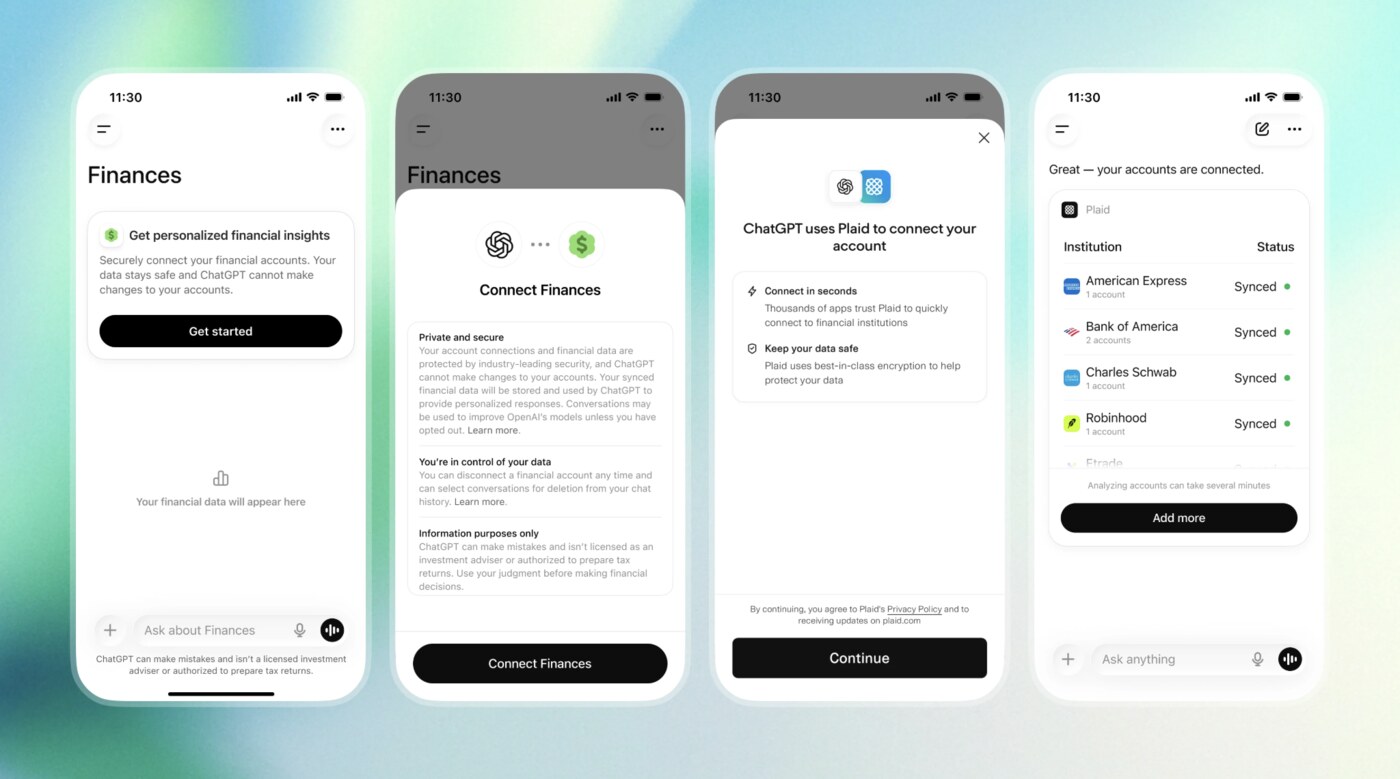
On October 2, OpenAI opened ChatGPT Finances to free users in the US. You link your bank and card accounts, and then you can ask things like “Where did my money go this month?” or “Which of my credit cards should I use for groceries?” OpenAI says ChatGPT can’t make changes to your accounts. It can see them, though, once you connect them.
That’s the deal with every new AI helper right now. The more it can see, the more it can do for you, so you want to be the one deciding what it sees. Here’s the two-minute version. In ChatGPT, open Settings, then Apps. That’s the list of every account you’ve connected. Disconnect anything you don’t use. And remember that turning access off stops new reading, but it doesn’t erase what’s already in your chats, so delete those too if you want them gone.
My guide has the exact taps for ChatGPT, Claude, Google, Facebook, Instagram, your iPhone, and your Mac, so you can try every new AI tool and still keep your information yours.
📚 Do this with ChatGPT
104 ChatGPT Codes That Turn Any Book Into Study Notes
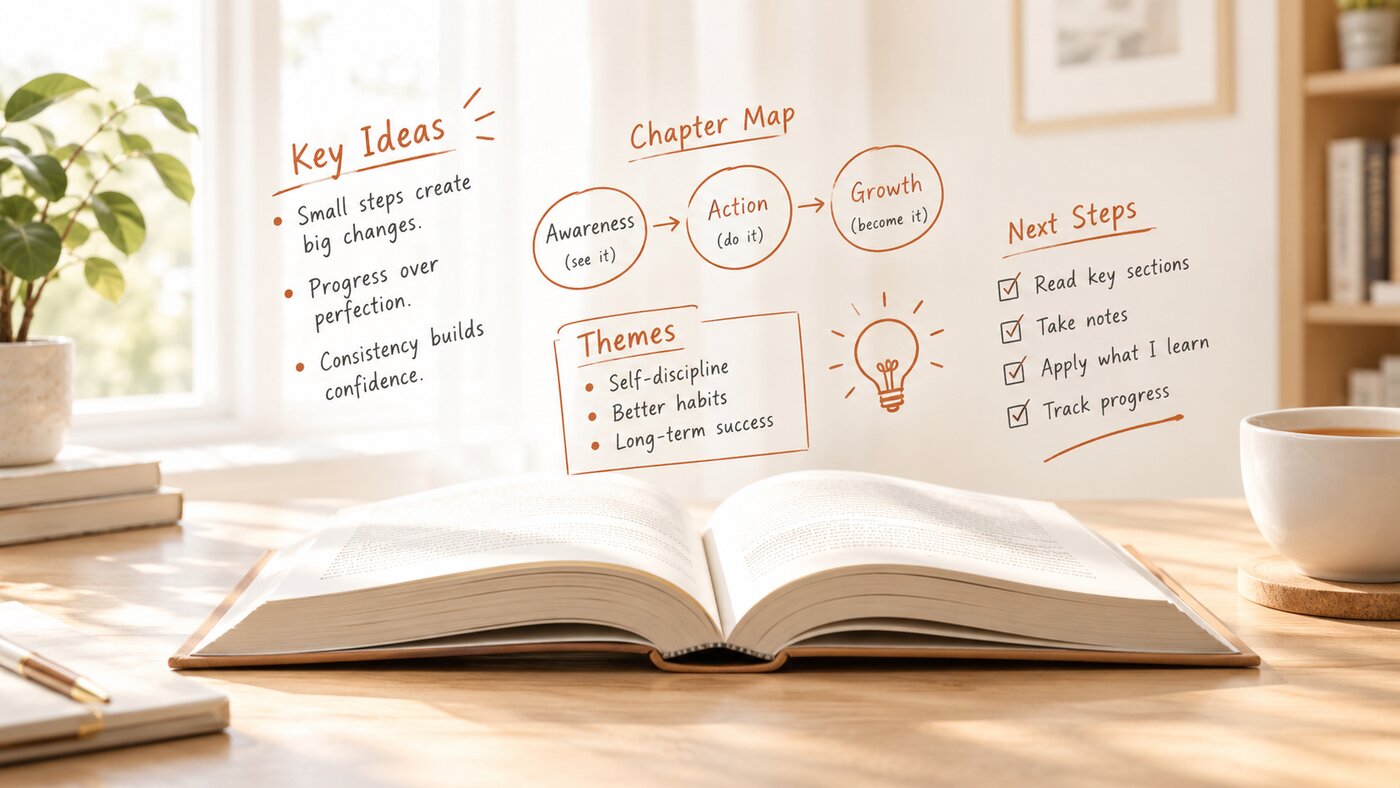
You can learn a book without reading every page twice, and still remember it a month from now. Name the book, type a short code, and ChatGPT hands you a page of study notes with headings, arrows, and callout boxes that you can save to your phone. It works on a book you name, a chapter you paste, or a PDF you upload, on every plan, including free. Here’s the full setup:
Step 1: Open a new chat in ChatGPT and paste this once:
For the rest of this chat, when I type a word that starts with a slash, treat it as a shorthand instruction and run it on the book or text I give you. /visualnotes means one image of visual study notes. /mentalmodels means one image mapping the book's core ideas. /chaptermap means one image mapping a single chapter. /themes means one image of the book's major themes. For any other slash word, do what the word says, as text, kept short and easy to scan. Don't explain the code back to me. Run it.
Step 2: Name your book, or paste a chapter, or upload the PDF with the plus button. “The Psychology of Money by Morgan Housel” is enough for a well-known book.
Step 3: Type a code. /visualnotes for the notes page. /mentalmodels for a map of the book’s big ideas. /chaptermap for one chapter at a time. /themes for a board of the major themes. Save the image to your phone and you’ve got the book in your pocket.
I created a guide with all 104 codes, for deciding if a book is worth your time, reading faster, testing yourself, and putting what you learn to use.
🤖 This just happened
GPT-6 Is Coming to ChatGPT’s Free Plan
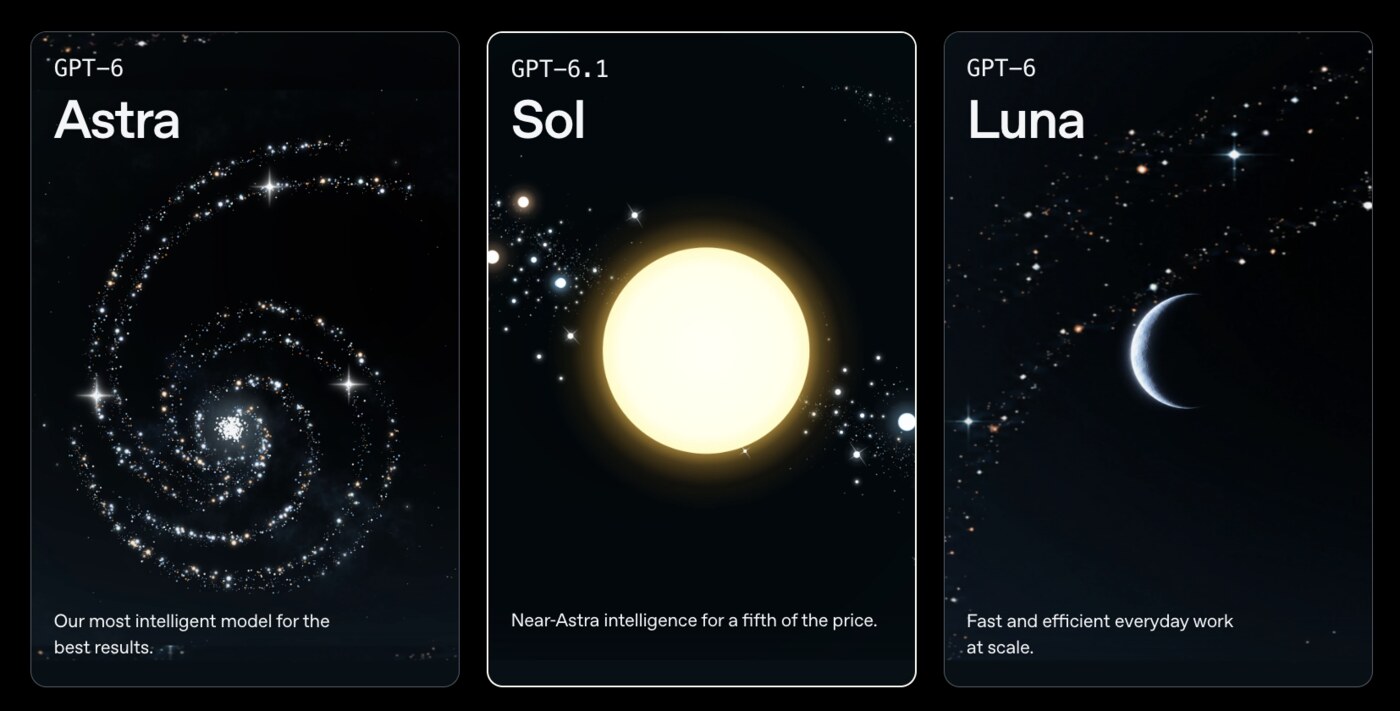
OpenAI started rolling out GPT-6 to everyone this week. Paid plans got it on Wednesday, October 7, and the free plan started getting a lighter version, GPT-6 Luna, the next day. If you don’t see it yet, give it a few days.
The big change is that answers aren’t only text anymore. When a chart, a map, a checklist, or a little calculator would help more than a paragraph, ChatGPT builds it right inside the reply, and you can click on it and change the numbers. Ask it to plan a dinner for eight and the shopping list updates when you change the guest count to twelve.
Try it with something you’ve been meaning to figure out. “Build me a savings calculator. I can put away $300 a month and I want $10,000 for a trip.” Then slide the numbers around. One habit to keep: OpenAI doesn’t promise the math is right, so check one result by hand before you plan around it.
💫 This week in AI
Claude’s Free Plan Can Make Docs and Slides Now
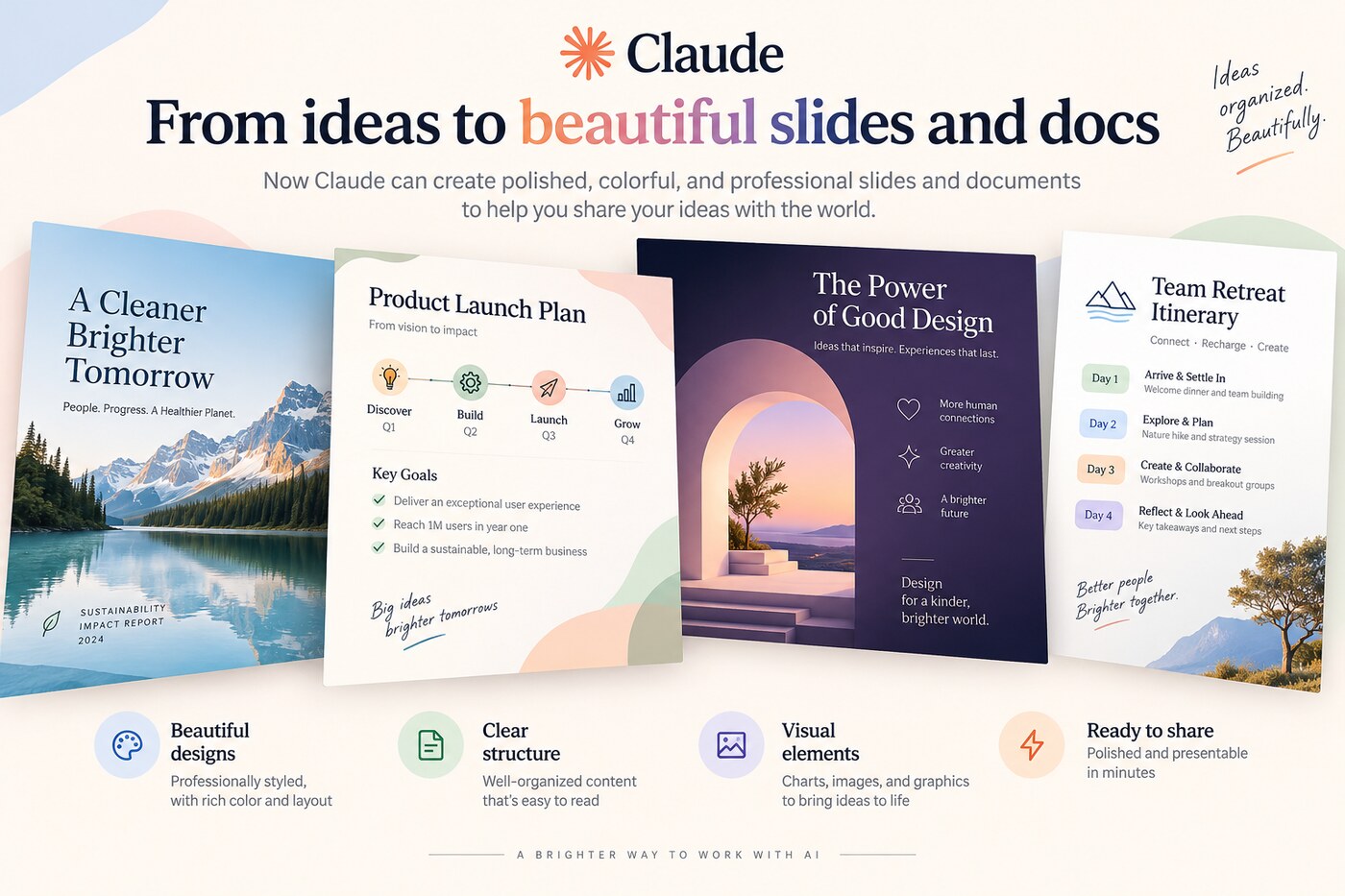
On October 8, Anthropic made Claude’s Docs, Slides, and Design available on every plan, including free. You don’t need to find a special menu. Open Claude and ask for what you want: “Turn these notes into a five-slide deck for Monday.” You can export it as a PowerPoint or a PDF, or send it to Google Slides and keep editing there.
Start with whatever’s sitting in your notes app. Meeting notes, a class outline, the plan for the family reunion. Paste it in, ask for a one-page doc or a short deck, and you’re editing a finished draft instead of a blank page.
Design Something Amazing in Claude →
💫 Worth your 5 min
Three things worth more than a scroll-past.
1. Check if a photo was made with AI. On October 7, Google opened its SynthID Detector to everyone. Upload a photo, a video, or an audio clip, and it looks for the invisible watermark that Google, OpenAI, NVIDIA, and a few others hide in what their AI makes. Use it the next time a photo in the family group chat looks a little too perfect. One thing to know: it can only find the watermark from those companies. “No watermark found” doesn’t prove a photo is real.
2. A professional headshot from a selfie. Take a clear selfie by a window, with your face lit and nothing behind you. Open ChatGPT, upload it, and paste this:
Turn this photo into a professional headshot I can use on LinkedIn and my website. Keep my face, my age, my skin tone, and my hair exactly as they are. Frame me from the shoulders up, looking at the camera with a friendly, relaxed expression. Dress me in a simple, solid-color top. Use soft, natural light and a plain light-gray background. Keep the skin texture real. Don't smooth my skin, change my features, or make me look younger. Make it square so it fits a round profile photo.
Check that it still looks like you. If it drifted, say “keep my face exactly the same as the photo” and run it again. Images are on every ChatGPT plan, including free.
3. Let Claude check your spreadsheet formulas. If you pay for Claude, it now works inside Google Sheets, Docs, and Slides. It’s in beta on every paid plan. Install it from the Google Workspace Marketplace, open your sheet, and go to Extensions, then Claude, then Open Claude. Then paste this:
Check this spreadsheet for formula mistakes. Look for totals that don't add up, formulas that break partway down a column, and numbers typed in by hand where a formula should be. List each problem with the cell, what's wrong, and the fix. Don't change anything yet.
Claude asks before it changes a cell, and you approve each fix. A spreadsheet can show a wrong total without showing an error, so spot-check one or two of its answers yourself.
💛 One more thing
All Of My Guides and Resources are Free
I started all of this because I wanted to learn AI and couldn’t find anyone explaining it in plain English. So that’s what I do now, for anyone who wants it. Every guide on my site is free, and each one goes deeper than a video ever could, with the exact prompts, the steps, and the parts that trip people up. Go check them out. They’re genuinely helpful, and I’d love for them to be helpful to you.
And if this email made something click, share it. Forward it to a friend, send them a guide, tell them where you found it. That’s how more people get to learn this stuff, and that’s the whole point.
That’s this week. If one of these actually helped, hit reply and tell me, I read every single one.
Talk soon, Kelly