
How to Have Gemini Watch YouTube Videos for You
Get the good parts of any long YouTube video without sitting through it. Paste the link into Gemini and get a summary, notes, or a full action plan with a progress bar you can check off. Then save it as a PDF, turn it into a website, or share it with a link.
Save it, print it, read it offline. It's yours.
You know the feeling. A two-hour podcast, a course someone swears by, a tutorial you’ve had open in a tab for a week. You want what’s in it, and you don’t have the time. This is how I get the good parts out of any long YouTube video in a couple of minutes, for free, and end up with something I can use instead of a video I never finish.
Gemini is Google's free AI assistant, and it can read public YouTube videos. Paste a video's link and ask for what you want: a quick summary, notes you can keep, a quiz, or a full action plan with checkboxes and a progress bar. The prompt below gives you the action plan. Part 3 shows you how to change it for anything else.
A free Google account, a computer, and the link to a public YouTube video. Nothing to install and nothing to pay for. It works on a phone too, but the page is nicer to scroll on a computer.
Go to gemini.google.com, start a new chat, and paste this in the box, with your video’s link where the bracket is. Then send it.
Turn this YouTube video into a visual action plan I can scroll through and save. Include a short summary, every step in order, the 3 things to do this week (easiest first), and what I need before I start. Add checkboxes so I can track my progress.

Make it look clean and modern: white background, black text, one soft accent color like muted teal, lots of white space, and rounded cards with thin borders. No dark mode, no gradients, no neon, no purple, no emojis.

Video: [paste the YouTube link]
Give it a minute. Gemini reads the video, then builds the page right in front of you. In my test it did this on its own, in a plain chat, with no settings changed. If yours comes back as plain text instead of a page, click the plus button under the text box, choose Canvas, and send the same prompt again.
Start with a how-to, a course, or an interview where someone teaches something. Those turn into the best plans, because there are real steps to pull out. A vlog or a reaction video gives Gemini less to work with.
I ran the prompt on a 42-minute video about starting a one-person business. Here’s the top of what came back.
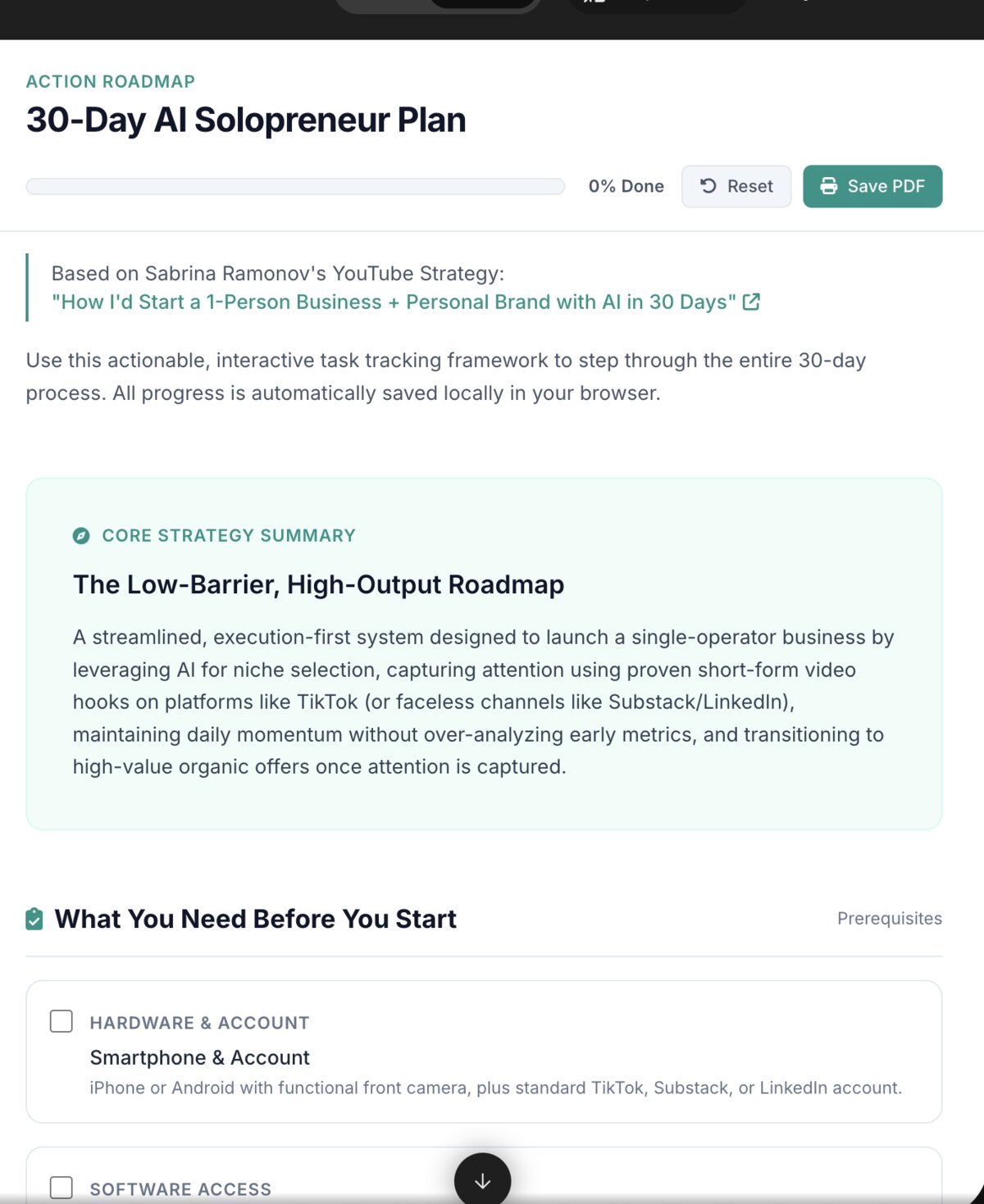
Reading down the page, you get:
- A short summary. What the video is about, in one card, so you know in ten seconds whether this plan is for you.
- The steps, in order. Everything the video teaches, laid out as a roadmap. Mine came back as a 30-day roadmap in four phases, because that’s how the video was built. A cooking tutorial would come back as cooking steps.
- The three things to do this week. Easiest first, each with a rough time. This is the part that gets you off the couch.
- What you need before you start. Tools, accounts, money, time. Mine said a phone, a free AI account, and zero dollars.
- A progress bar at the top. Every item has a checkbox. Check one and the bar moves. It’s a small thing, and it’s the reason I come back to the page instead of forgetting the video ever existed.
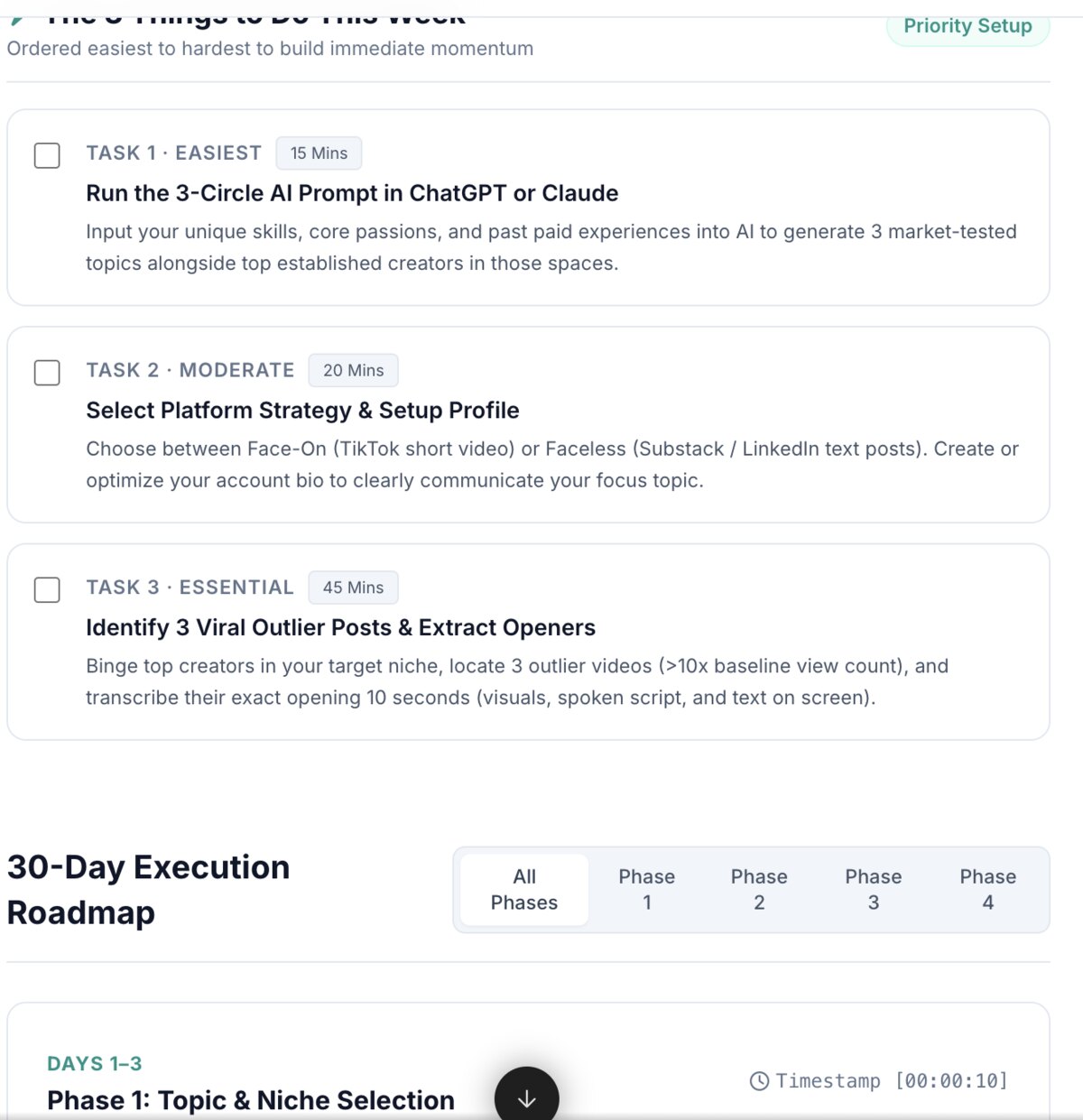
Your page won’t look exactly like mine. Gemini designs it fresh every time, so the colors and layout change a little from run to run. The parts stay the same because the prompt asks for them, and if you want different parts, you change the prompt. That’s Part 3.
The page isn’t stuck inside Gemini. Four ways to take it with you, all from buttons on the page:
Save PDF. The button at the top of the plan. Click it, choose where to save, and you have a file you can print or keep on your phone. If the saved pages ever come out blank, type this in the same chat: “Give me this plan as a PDF file.” Gemini can make the file itself.
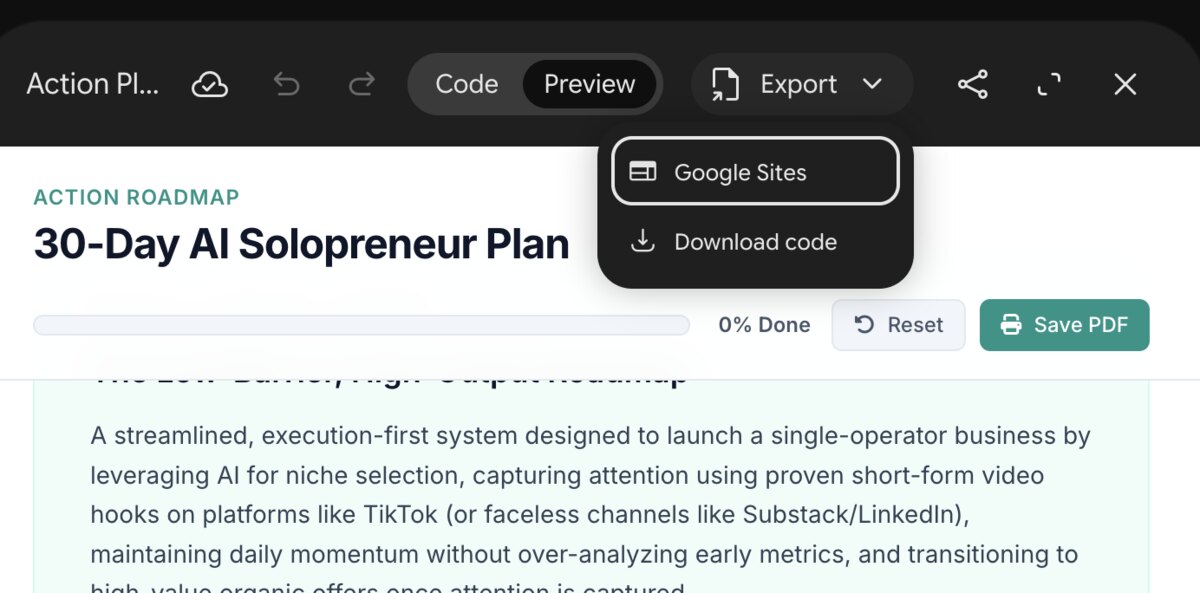
Turn it into a website. Open the Export menu above the page and choose Google Sites. Gemini drops the whole plan, working checkboxes and all, into a private draft website in your Google account. Nothing is public until you click Publish inside Sites, so you can keep it as your own page or share it with a team.
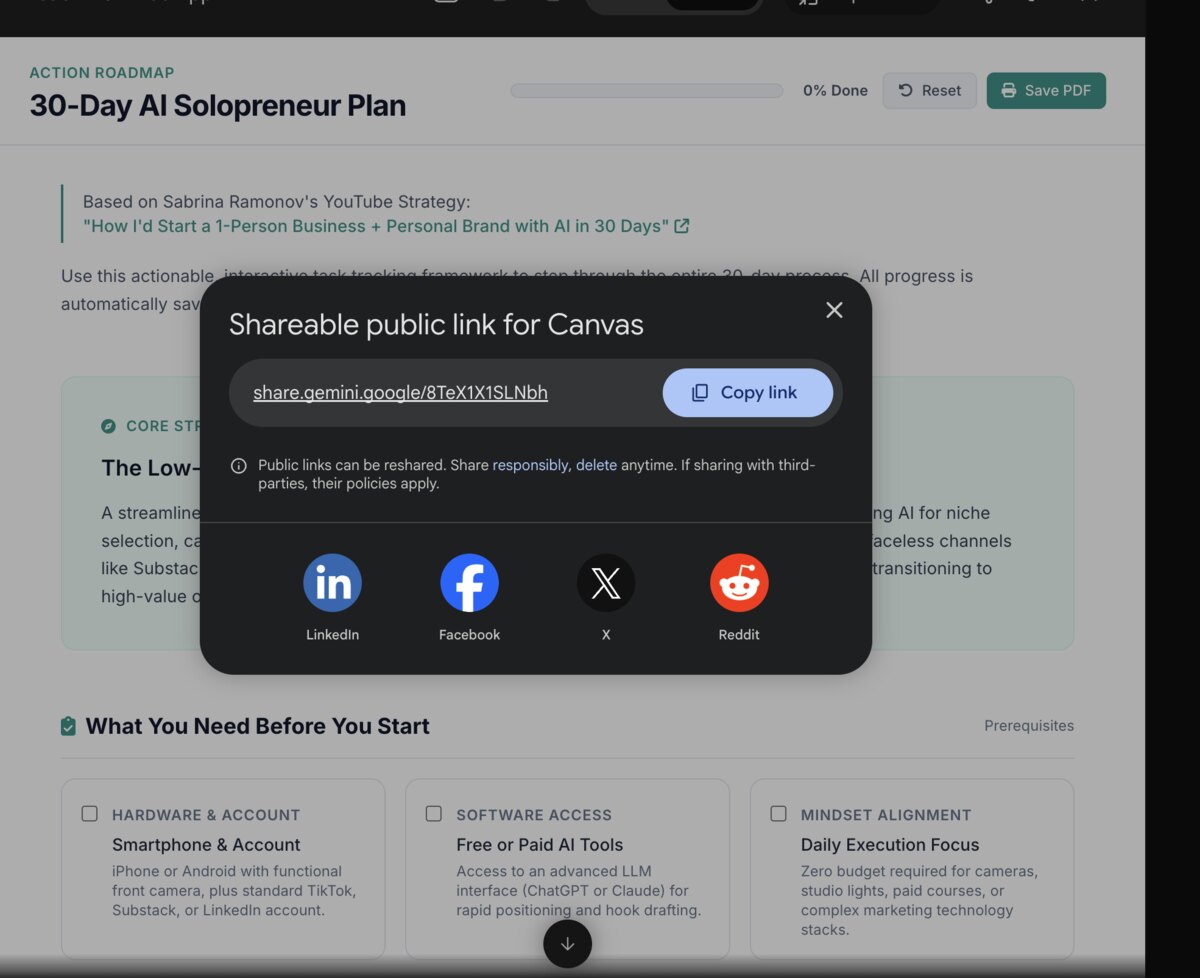
Share it with a link. Click the share icon at the top and copy the link. Anyone with the link can open the plan in a browser, and there are buttons to post it straight to LinkedIn, Facebook, X, or Reddit. One thing to know: a shared link is public, and anyone who has it can check boxes on it too. If you want to pull it back later, go to Settings in Gemini, then Your public links, and delete it.
Reset. The Reset button clears every checkbox so you can start the plan over, or hand a clean copy to someone else.
Your checkmarks save in the browser you’re using. Open the page on another device and the boxes start empty. If you want the same checks everywhere, export to Google Sites and use that copy.
Type it in the chat. "Make the accent color green." "Add a section for questions I still have." "Split week one into days." Gemini edits the page in place, and there are back and forward arrows at the top if you liked the older version better.
My prompt asks for an action plan because that’s what I wanted from that video. You might want something else from yours. The prompt has three parts, and you can swap any of them.
The first sentence says what to make. “Turn this YouTube video into a visual action plan I can scroll through and save.” Change “a visual action plan” to whatever you want: “a one-page summary,” “study notes,” “a shopping list,” “a checklist I can print,” “a 10-question quiz.”
The middle lists what goes in it. “Include a short summary, every step in order, the 3 things to do this week, and what I need before I start. Add checkboxes.” Keep the pieces you want and drop the rest. Don’t want a 30-day plan? Ask for “the 5 most important ideas” instead of “every step.” Want it for a week, not a month? Say “a 7-day plan with one task per day.”
The last part says how it should look. White background, one accent color, no dark mode. Change the color, or delete that paragraph and let Gemini pick.
Three versions I use:
Summary only, no page. When I want to know if a video is worth my time.
Summarize this YouTube video in 5 bullet points, then tell me in one sentence who it's for and whether I should watch the whole thing.

Video: [paste the YouTube link]
Notes I can keep. For a course or a talk with facts I’ll want later.
Turn this YouTube video into study notes I can save: the main idea, the key points in order, any numbers, names, or tools mentioned, and a one-line takeaway. Keep it under one page.

Video: [paste the YouTube link]
A weekly plan. For a how-to I want to follow a little at a time.
Turn this YouTube video into a visual 7-day plan I can scroll through and save: one task a day, easiest first, with a checkbox on each day and a progress bar. Include a two-sentence summary at the top and a list of what I need before day one.

Make it look clean and modern: white background, black text, one soft accent color, lots of white space, rounded cards with thin borders. No dark mode, no gradients, no emojis.

Video: [paste the YouTube link]
Whatever you ask for, keep the last line the same: “Video:” and the link. That’s the part Gemini needs.
The link stays in the chat, so once the plan is built you can keep asking. Each of these is one line.
| You want | Type this |
|---|---|
| A quiz | Make me a 10-question quiz on this video with the answers at the bottom. |
| Steps with timestamps | List every step in this video in order, with the timestamp where each one starts. Only use what’s said or shown in the video. |
| A recipe card | Write this as a recipe card: ingredients with amounts, then the steps, then the cook time. |
| The best quotes | Give me the 5 best quotes from this video, each with its timestamp. |
| An explanation for a beginner | Explain the main idea of this video to someone who has never heard of it, in plain language, in under 150 words. |
Any of these can come back as a page too. Add “as a visual page I can scroll” to the end of the line.
Most of the time the prompt works on the first try. When it doesn’t, it’s one of these.
Gemini says it can’t access the video. Check four things, in this order. The video is public, not private or unlisted. You’re signed in, and Keep Activity is on in your Gemini settings (Gemini needs it on to read YouTube). You’re in a typed chat, not Gemini Live. You’re on a personal Google account, since some work and school accounts have YouTube switched off.
The summary sounds generic, or it’s about the wrong thing. Gemini may have answered from the title instead of the video. Ask it: “What’s the first thing the speaker says, and at what timestamp?” If it can’t tell you, it didn’t read the video. That usually means the video has no captions. Open it on YouTube, tap More under the title, then Show transcript, copy the text, and paste it under the same prompt.
The plan has steps the video never said. Add one line to the prompt: “Only use what is said or shown in the video. Do not add tips that aren’t in it.” Then spot-check one or two timestamps before you trust the roadmap.
The video is long and the end got thin. On the free plan, long videos can get cut short. Ask in pieces: “Summarize the first 30 minutes,” then “now 30:00 to 60:00.”
The video isn’t in English. Add “Answer in English” to the prompt and try it. Some languages work and some don’t yet.
Gemini works from the video's public information and can make mistakes, especially with timestamps late in a long video. The plan is a head start, not a replacement for the parts of the video that matter most to you. When a step is important, jump to that timestamp and watch the two minutes around it.
Want more like this?
One simple AI win in your inbox every Sunday. No jargon, no overwhelm, unsubscribe whenever you like.
Want more like this?
Free AI guides added regularly. No jargon, no overwhelm.
kellystrattonai.com