
How to Organize Photos With AI: Let Claude Sort Them Into Folders
Sort hundreds of photos into folders without touching one. One prompt in the Claude app looks at every picture, files each one where it belongs, and builds you a dashboard where you can click any folder and see what's inside.
Save it, print it, read it offline. It's yours.
Sorting photos by hand is the job everyone puts off. Hundreds of pictures, screenshots, and downloads, all piled in one place with names like IMG_4471. This guide hands the whole job to Claude. You paste one prompt, and Claude opens every picture, looks at what’s in it, makes folders that make sense, and files each photo where it belongs. Then it builds you a dashboard where you can click any folder and see every photo inside. I sorted 735 images into 13 folders this way and didn’t touch a single one.
Claude looks at each photo the way you would, by what's in the picture, not by its file name. It creates folders inside your photo folder, moves every photo into the one that fits, puts anything it isn't sure about in a folder called Not Sure, and builds a page that shows all your folders with a count and a preview of each.
The Claude desktop app for Mac or Windows, on Claude's $20 plan or higher. The web version and the phone app can't reach the folders on your computer. And a folder of photos on your computer.
Claude sorts one folder at a time, so start by gathering the photos you want sorted into one new folder. Making it on your Desktop keeps every step after this easy to find.
- Make the folder. On a Mac, right-click an empty spot on your Desktop and choose New Folder. On Windows, right-click an empty spot on your Desktop and choose New, then Folder.
- Name it. Type Photos to Sort and press Return (Mac) or Enter (Windows).
- Copy your photos into it. Open the folder where your photos are now. Select the ones you want sorted (press Command-A on a Mac or Ctrl-A on Windows to select them all). Copy them with Command-C or Ctrl-C. Then open your new Photos to Sort folder and paste with Command-V or Ctrl-V.
Copying, instead of moving, leaves your originals exactly where they were. The prompt tells Claude never to delete anything, but for your first run, a copy means zero worry.
Are your photos in the Photos app on a Mac? Open Photos and select the pictures you want (click the first one, then hold Shift and click the last one, or press Command-A for all). In the menu bar at the top of your screen, click File, then Export, then Export Unmodified Originals. Click Export, choose the Photos to Sort folder on your Desktop, and click Export Originals.
Are your photos in Google Photos? Go to photos.google.com. Hover over a photo and click the small circle in its corner to select it, then do the same for the others you want. Click the three dots in the top right corner and choose Download. Your photos download as one zipped file into your Downloads folder. On a Mac, double-click the zipped file to open it. On Windows, right-click it and choose Extract All. Then copy the photos into your Photos to Sort folder.
This is the step that trips people up. Many computers keep the Desktop in iCloud (on a Mac) or OneDrive (on Windows), and some photos may be stored only in the cloud. Claude can’t look at a photo that isn’t actually on your computer, so download them first.
- On a Mac: right-click the Photos to Sort folder on your Desktop. If you see Download Now in the menu, click it, and give it a minute or two to finish, longer if you have a lot of photos. If you don’t see Download Now, your photos are already on your Mac, and you can go straight to Step 3.
- On Windows: right-click the Photos to Sort folder on your Desktop. If you see Always keep on this device, click it and let it finish. If you don’t see it, your photos are already on your computer.
If you skip this step, Claude will notice. When I ran this, 705 of my 735 photos were still in iCloud, and Claude stopped and told me to download them before it sorted anything.
- Open the Claude desktop app and start a new chat.
- Copy the prompt below. Click the Copy button in the top right corner of the prompt box, then click in Claude’s message box and paste (Command-V or Ctrl-V).
- Check the folder name. The prompt says Photos to Sort on your Desktop. If you named your folder something else, change those words to match.
- Press Return or Enter to send it.
- If Claude asks for permission to open the folder, say yes. Some computers ask and some don’t, so if it just starts working, you’re all set.
Don’t drag the folder into the chat. Claude counts every photo as a separate attachment, and it stops at 20. Just name the folder in the prompt and Claude goes and gets it.
Go to the folder called Photos to Sort on my Desktop. Open each image and look at what's in it. Don't sort by file name.

1. Pick 8 to 12 clear folder names that fit what you see. Create those folders inside this folder and move every image into the one that fits best. Put any image you're not sure about in a folder called Not Sure. Don't delete or rename anything, and don't move anything outside this folder. When you're done, show me a table of each folder and how many images went into it.

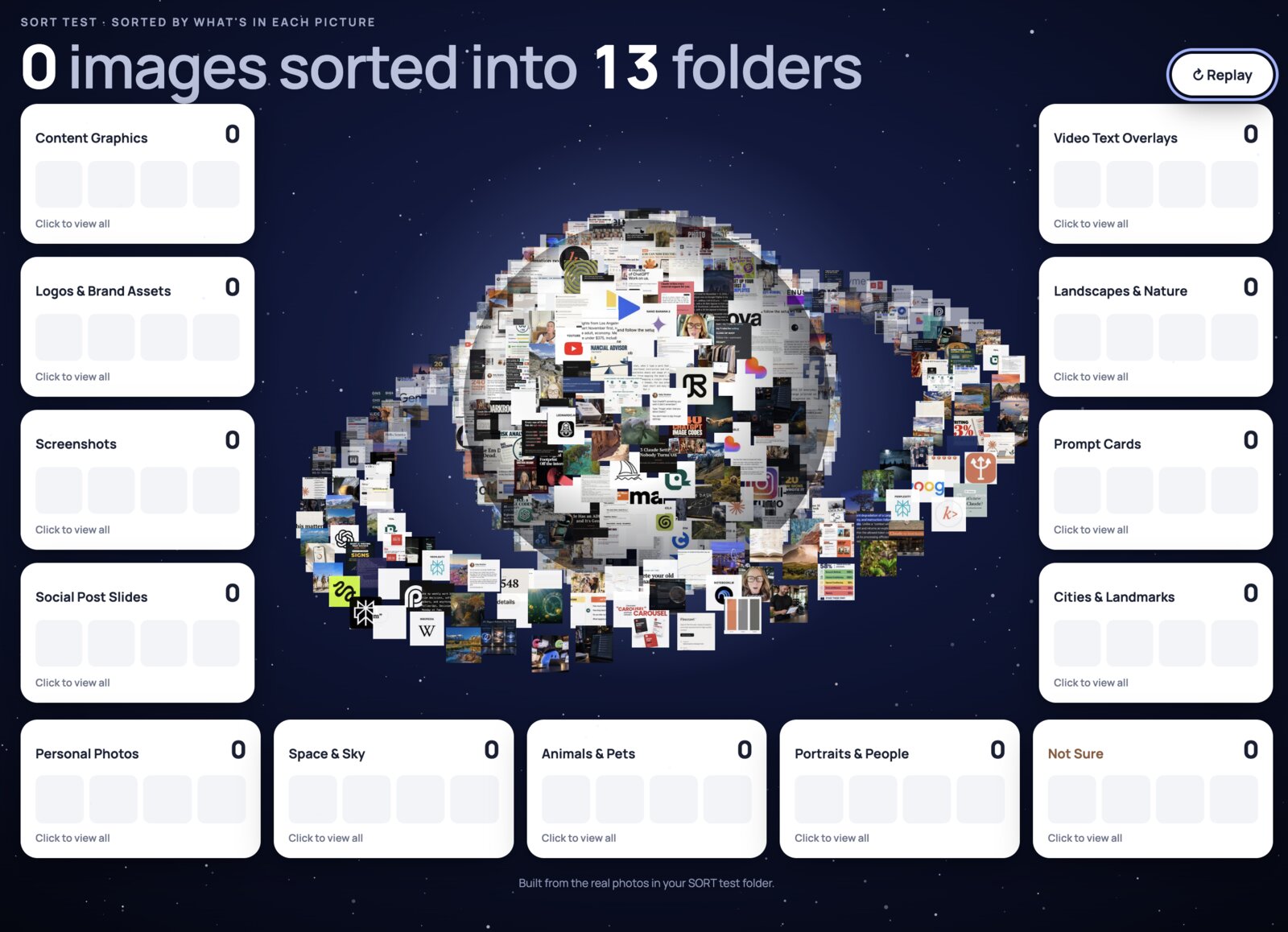
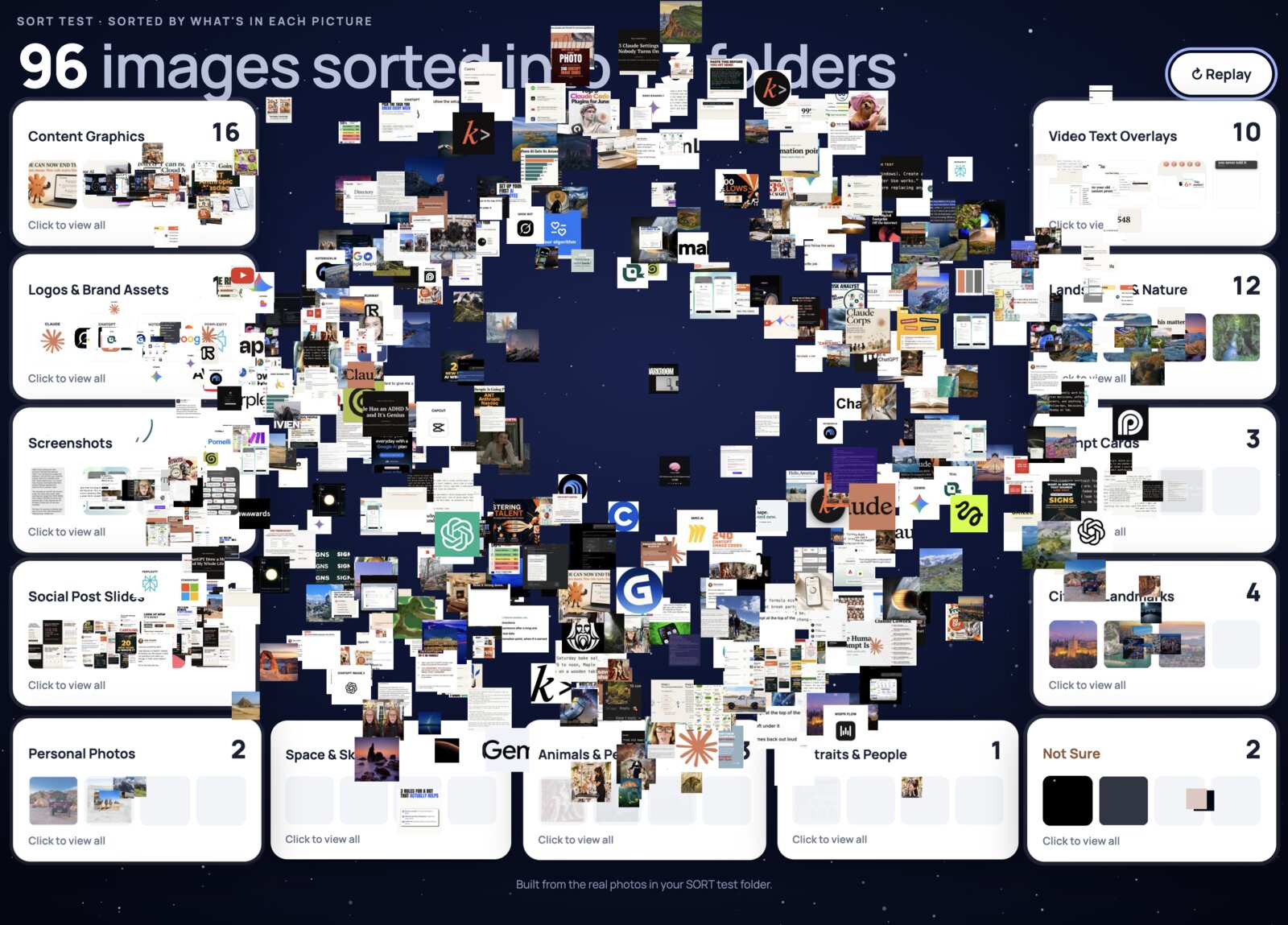
2. Then build me a dashboard as one HTML file called sort-dashboard.html inside this folder, and open it in my browser. The center is the star: a planet made of my real photos. Small thumbnails of every image cover a slowly spinning 3D globe on a deep night-sky background, with a ring of more photos orbiting around it like Saturn. After a few seconds the planet spins faster, then bursts, and every photo flies out to its folder card. The folder cards sit around the edge: white, rounded corners, soft shadows. Each one shows the folder name, a count that ticks up as photos land, and a few of its own thumbnails. At the top, a big total: how many images were sorted and into how many folders. Soft glow only, no neon. Make every folder card clickable: clicking it opens a gallery of every image in that folder right on the page, and clicking an image shows it full size, with a Back button to the dashboard. Add a Replay button so I can watch it again.Give it the folder's exact address. On a Mac: right-click the Photos to Sort folder on your Desktop, then press and hold the Option key. The word Copy changes to Copy "Photos to Sort" as Pathname. Click it. On Windows: right-click the folder and choose Copy as path. Then reply to Claude with "The folder is here:" and paste (Command-V or Ctrl-V).
Claude gets to work. It opens your photos in batches and really looks at them, then makes the folders and moves everything in. A big folder takes a while, so let it run. When it’s done, it shows you a table of every folder and how many photos landed in each, then opens your dashboard.
First, every photo you have forms one spinning planet:
Then the planet bursts, and the photos fly out to their folders while the counts tick up:
And when it settles, every photo is in its folder:
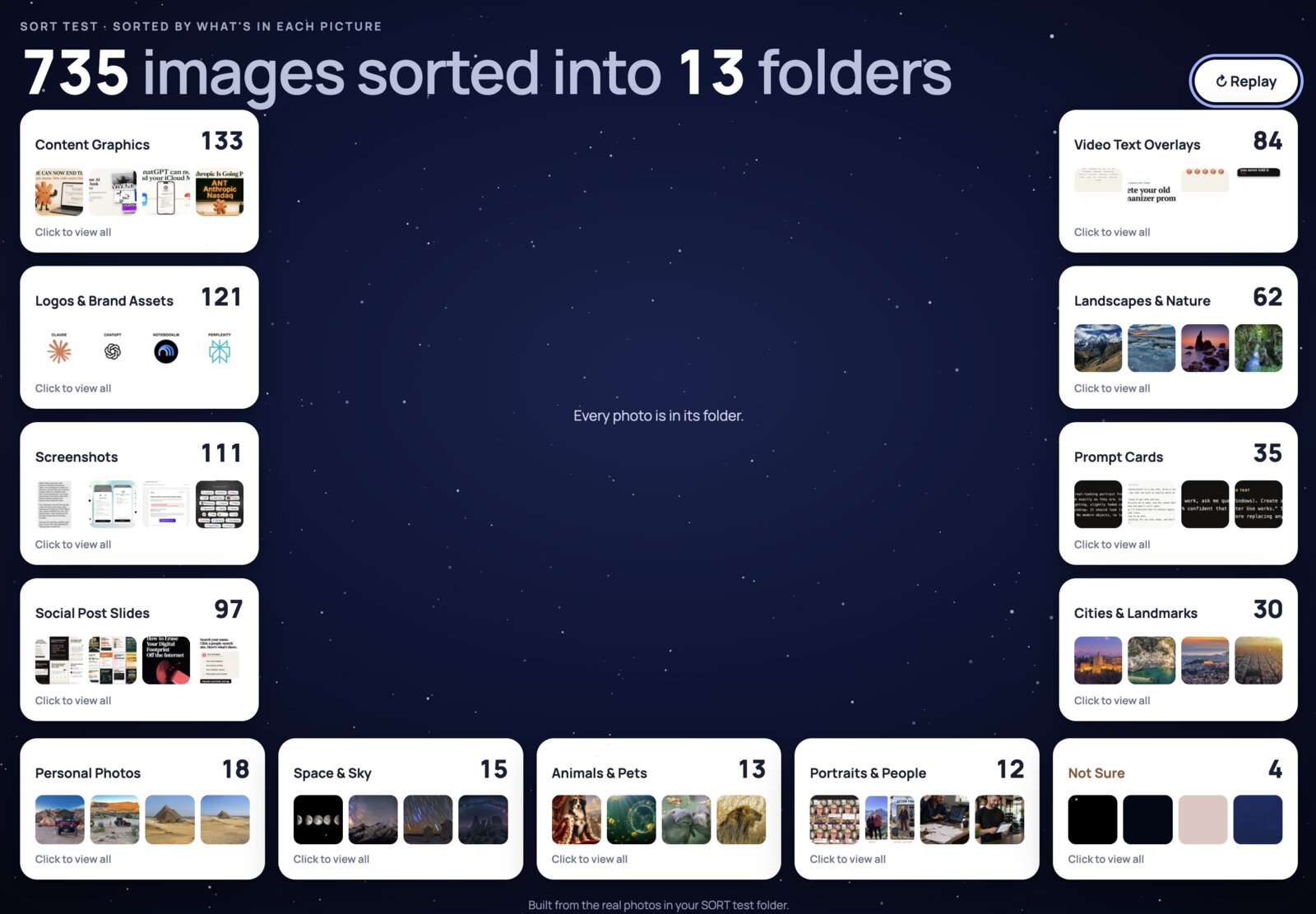
Click any card to open that folder’s gallery, click a photo to see it full size, and use Back to return. Replay plays the planet again.
The dashboard is a file on your computer, not a website, so closing the browser tab doesn’t lose it. Here’s every way back:
Copy your new photos straight into your Photos to Sort folder, right next to the folders Claude made, not inside one of them. Then open the Claude app and paste this prompt:
Go to the folder called Photos to Sort on my Desktop. Sort only the loose images into the folders that are already there. Make a new folder only if nothing fits. Don't delete or rename anything. Then rebuild sort-dashboard.html so the totals and folder cards match.Want a folder called something else? In the Claude app, type something like: “In my Photos to Sort folder, rename the Landscapes & Nature folder to Travel, then rebuild the dashboard.” Renaming on the dashboard page alone won’t change the real folder, so let Claude do both.
Claude looks at your photos to sort them, the same way it reads anything you share in a chat. The dashboard itself stays a file on your computer. It isn't posted anywhere. Claude can file a photo in a different folder than you would, which is what the Not Sure folder is for. Glance through it and move anything by hand in a few seconds.
- Anthropic, Claude help center: working with files and folders on your computer requires the Claude desktop app and a paid plan. support.claude.com
- The run shown here is my own: 735 images sorted into 13 folders on my Mac on November 4, 2026, with the prompt in this guide.
Want more like this?
One simple AI win in your inbox every Sunday. No jargon, no overwhelm, unsubscribe whenever you like.
Want more like this?
Free AI guides added regularly. No jargon, no overwhelm.
kellystrattonai.com